VisionWealth for Employers: Admin Registration & Set Up
Welcome to VisionWealth for Employers, financial planning software designed to enhance your financial wellness benefits. This short guide will walk you through the process of registration and setup.
How to Register:
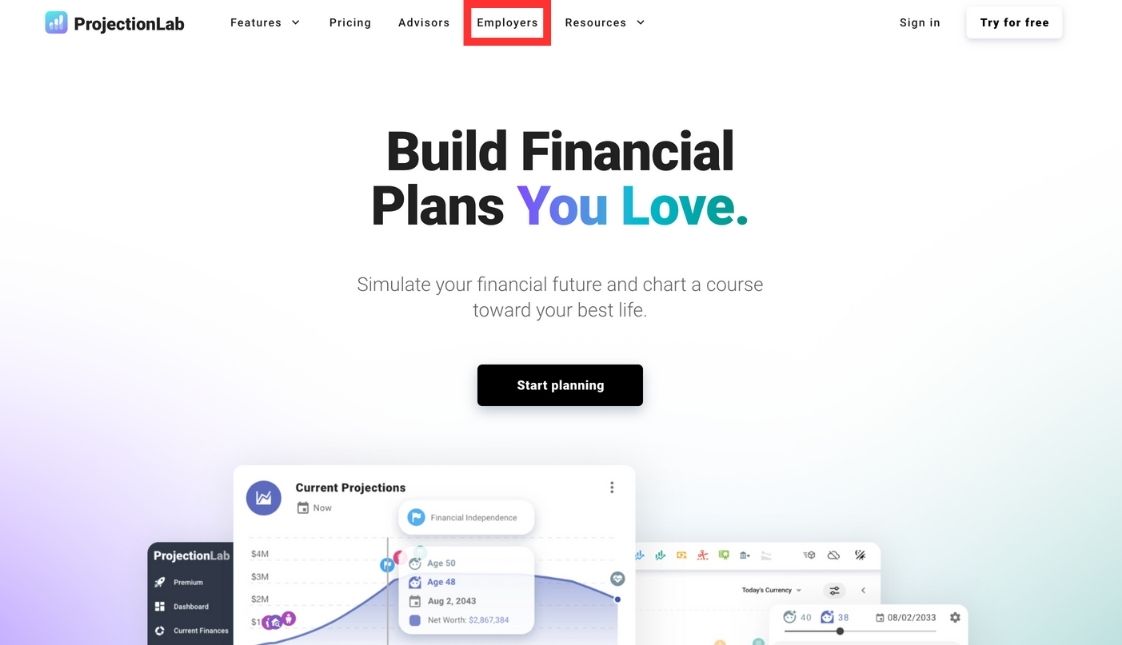
- Visit visionwealth.online and click on the Employers tab at the top of the page.
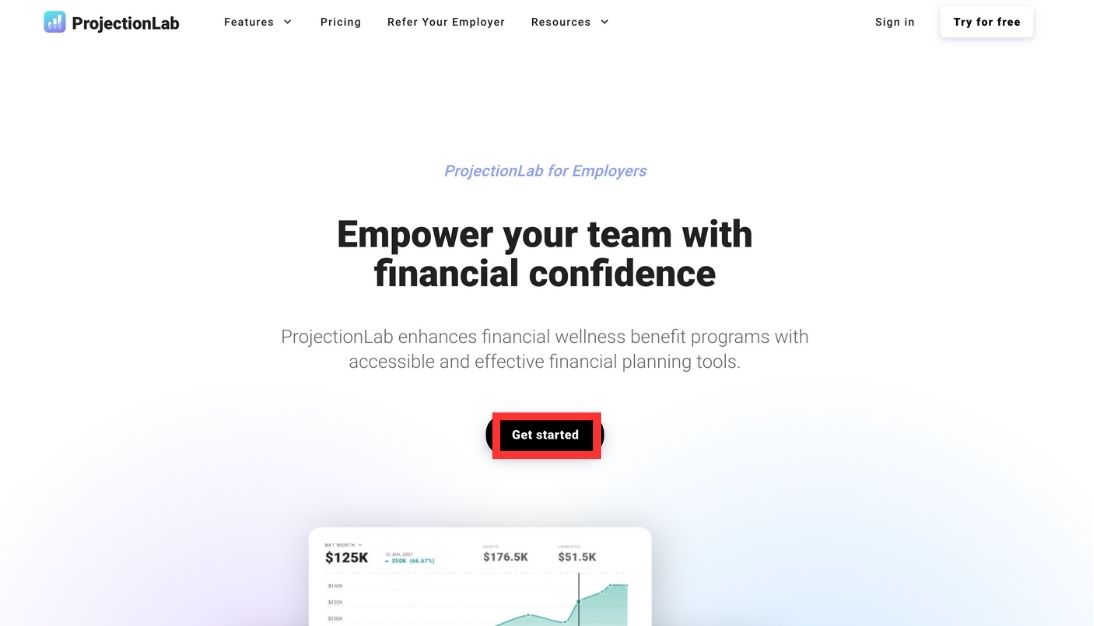
- Begin Registration: Click the “Get started†button located in the center of the page.
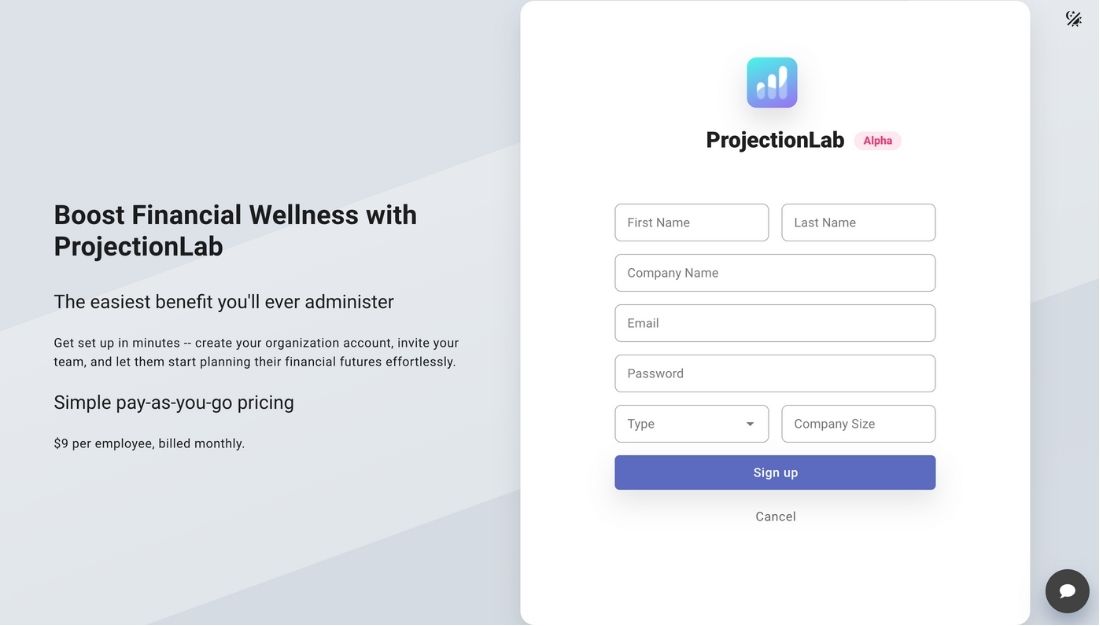
- Complete Setup: Fill in the necessary information to establish your administrator account. This account will allow you to manage team member additions and removals, as well as oversee Gratuit.
Note: The Company Size and Company Type fields are for informational purposes only. VisionWealth For Employer plans are billed per registered user, not based on company size.
Activate Gratuit:
Once you’ve completed the account creation process above, you will be directed to your dashboard.
- Under “Ready to start inviting your team?†click Activate Gratuit.

- Enter your credit card and Gratuit Gratuit information.
Invite Your Team to Start Using VisionWealth:
After entering your Gratuit information above, you will see this screen:
- Copy and send the link under “Invite Team Membersâ€â€”this is the link they will use to register and create their own private accounts as part of your Employer Gratuit.
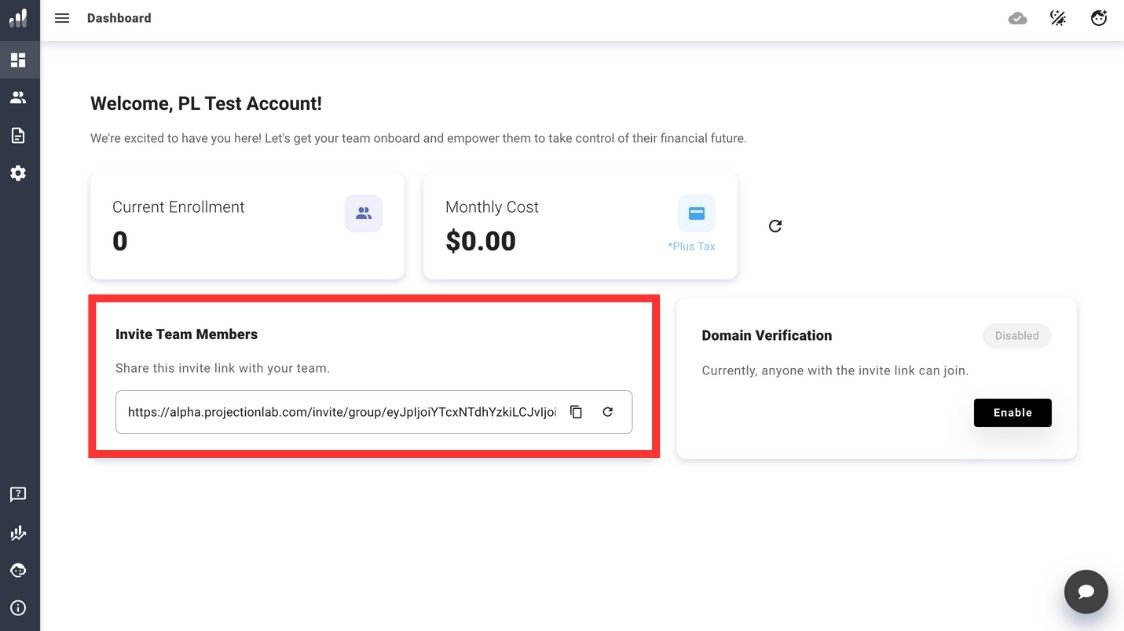
Note on Domain Verification: If you would like to ensure that only team members with a specific email domain from your company can register, please enter the desired domain (ex: @companyname.com) in the Domain Verification box, located to the right of the Invite Team Members box.
What the Team Member Sign-Up Experience Looks Like:
When team members receive their invitation:
- They’ll click the unique link you created to invite them
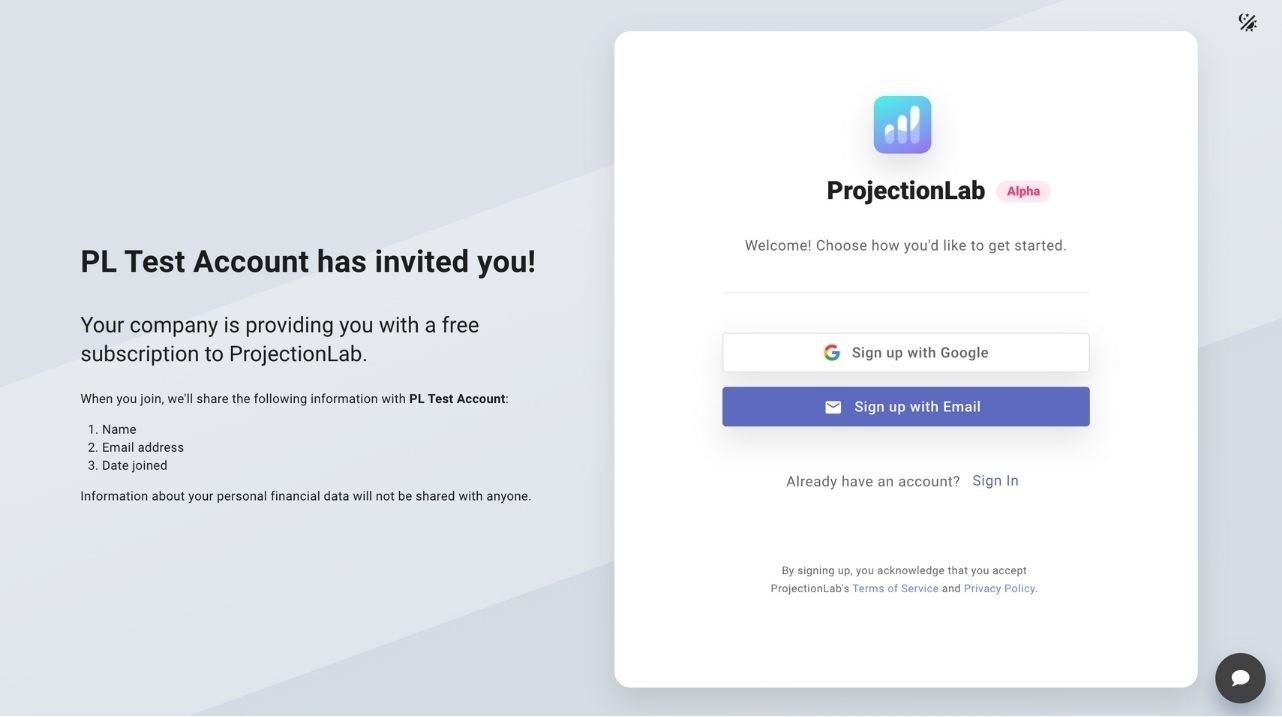
- They’ll complete a quick personal account registration process
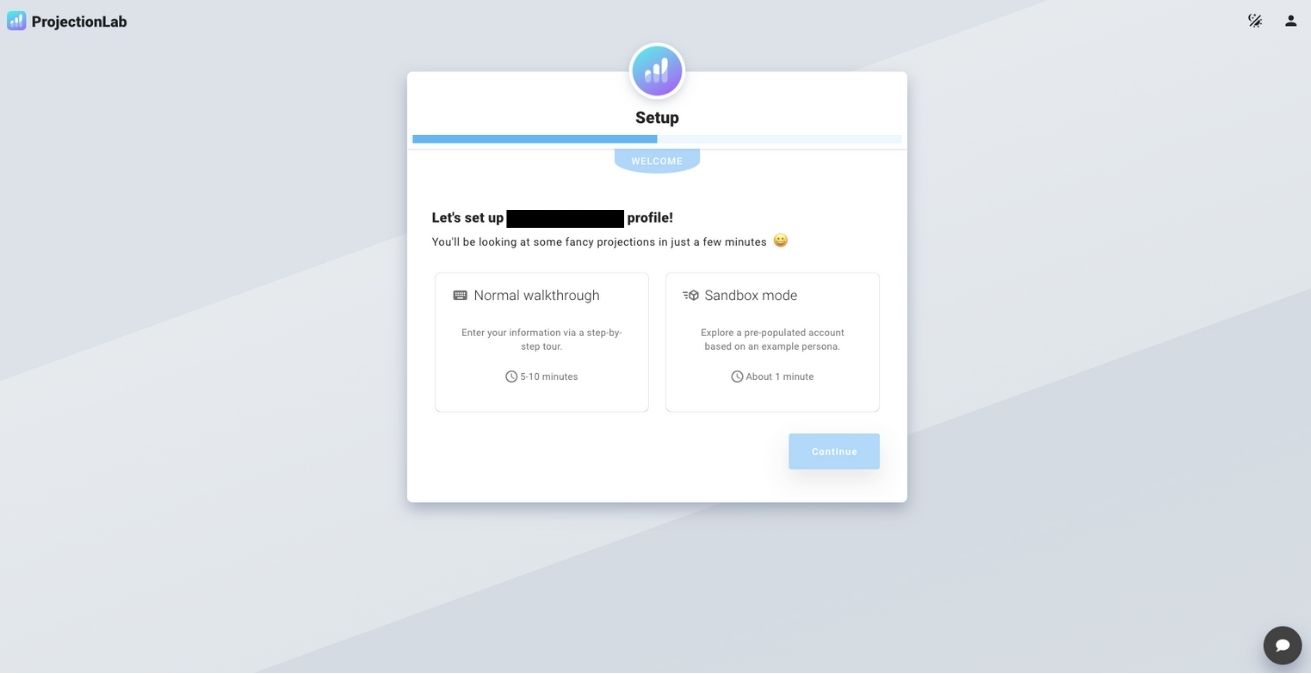
- Users will have two options to start using VisionWealth: a Normal Walkthrough, which takes approximately 5-10 minutes and provides a step-by-step tour for entering personal information, or Sandbox Mode, which takes about 1 minute and allows exploration of a pre-populated account based on example personas.
Tracking Current Enrollment:
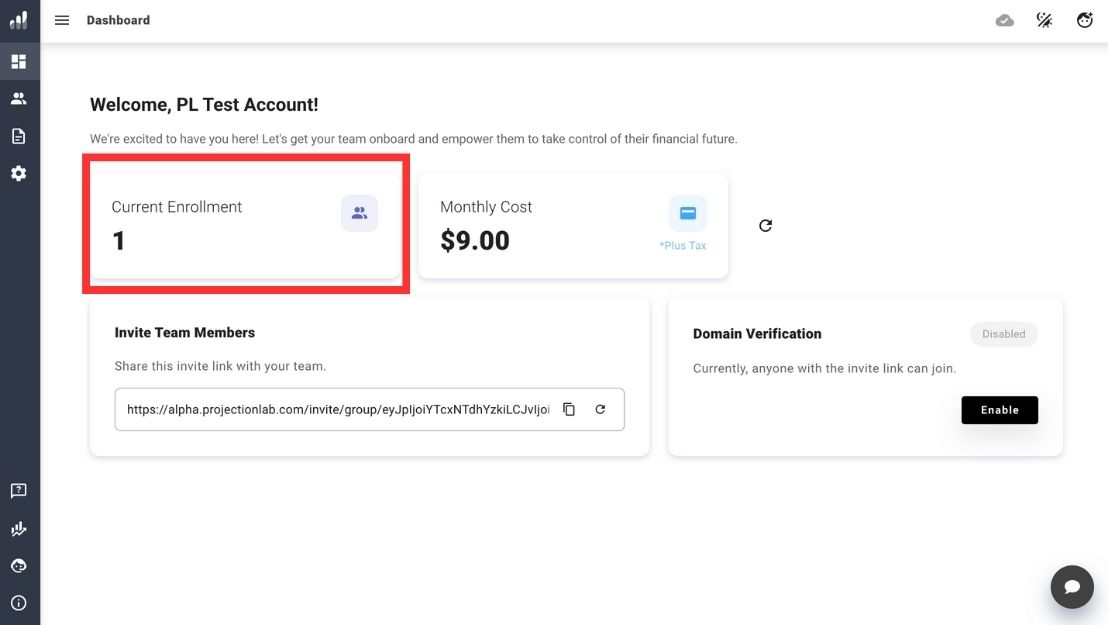
To see who is currently enrolled after sending out the invite link, click on the Current Enrollment box in your main dashboard.
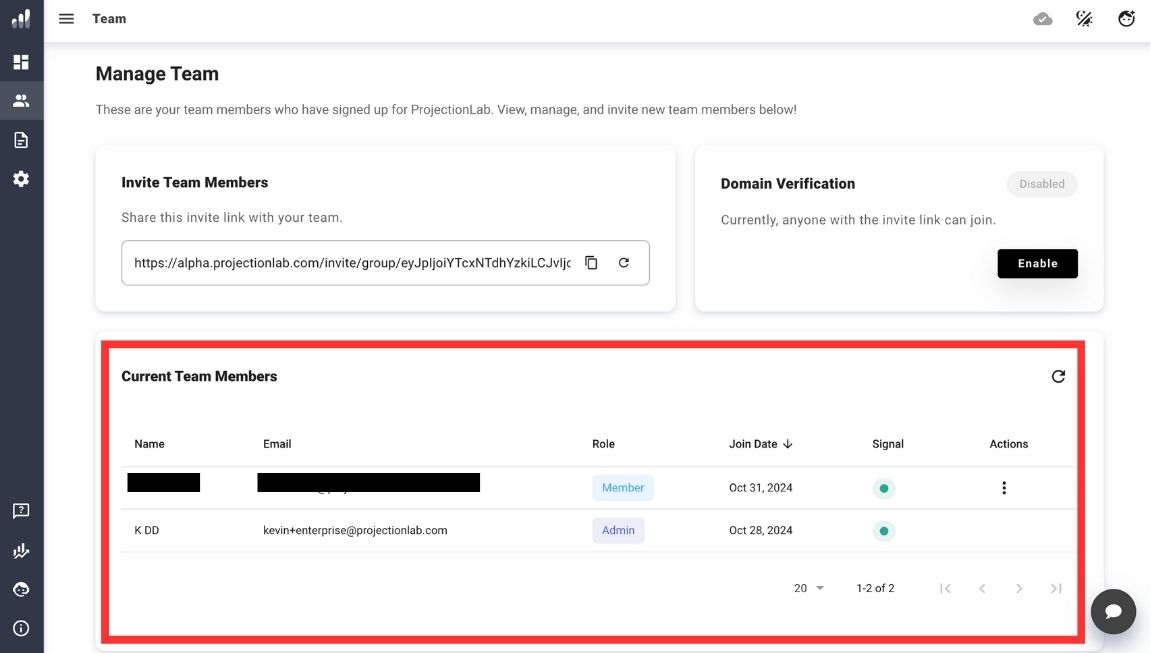
You’ll find a list of all enrolled employees under “Current Team Members.â€
Tracking Benefit Usage:
Monitoring your team’s use of VisionWealth is straightforward with the Signal icon next to each user’s account, which indicates recent activity.
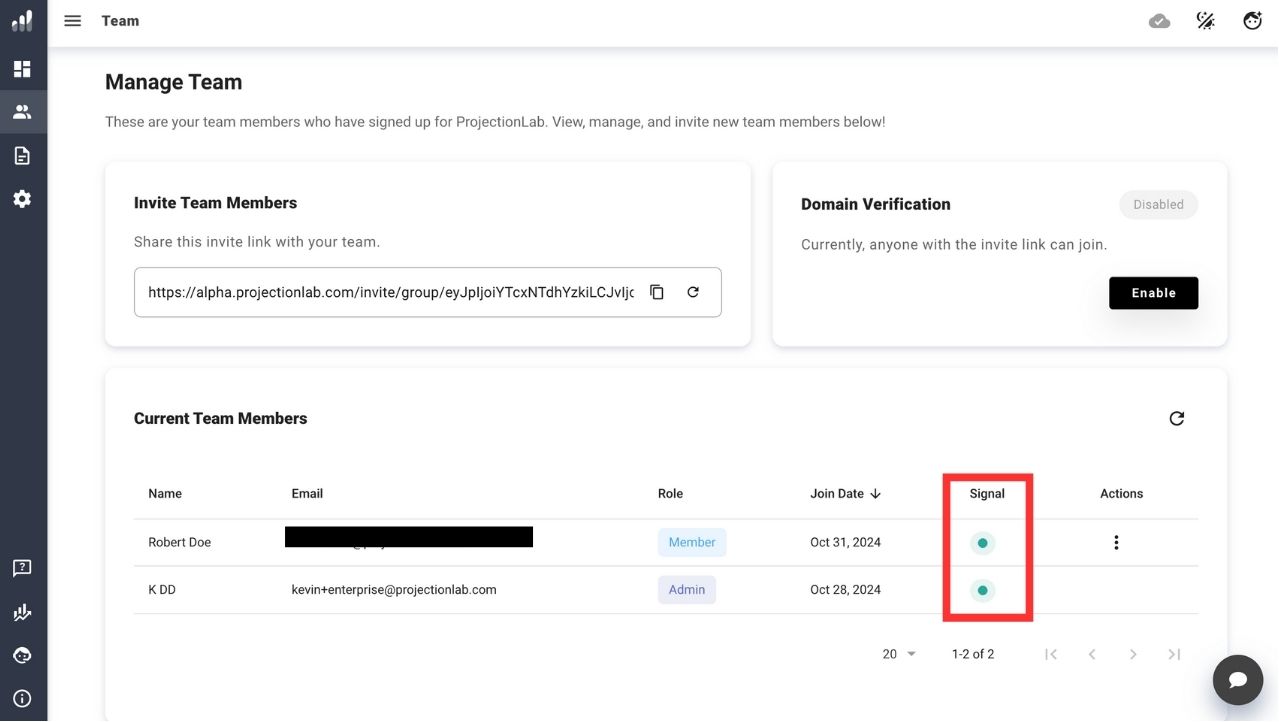
As an administrator, you can evaluate usage frequency over the past year or quarter to identify power users and those who may need support. You can also pinpoint inactive users and check if they wish to remove themselves. This approach simplifies management, ensuring only active users are billed while maximizing everyone’s experience with VisionWealth.